
Pick the job before the tool
“Compress my photos” can mean four different jobs on an iPhone, and Apple has a different answer for each.
| Your goal | Apple’s built-in way | Covered |
|---|---|---|
| New photos that take less room | High Efficiency, and the photo size setting | Next section |
| Space back without losing any photo | Optimize iPhone Storage, with iCloud Photos | Below |
| One smaller copy to send or upload | Export from the Preview app | Upload forms |
| Smaller versions of photos already in your library | None in Apple’s guide | The last section |
The first two are gentle. Apple says HEIF and HEVC “use less storage space” than JPEG and H.264 “while preserving the same visual quality” (Apple Support), and Optimize iPhone Storage keeps your originals in iCloud. The last two trade detail for size. Where that loss starts to show is on does compressing photos lose quality.
Make new photos smaller from now on
The cheapest saving is the one you set once. In Settings, Camera, Formats, choosing Most Compatible makes all new photos and videos use JPEG or H.264; choosing High Efficiency returns to the space-saving HEIF and HEVC formats.
- Open Settings, tap Camera, then tap Formats.
- Choose High Efficiency. Apple calls HEIF and HEVC capture “recommended” (Apple Support).
- While you are there, look at the photo size. On supported iPhone models the Main or Fusion camera saves 24 MP photos by default, and Settings, Camera, Formats, Photo Mode lets you choose 12 MP or 24 MP. Each choice is in photo resolution settings.
- Leave ProRAW and Resolution Control off unless you need them. ProRAW files are 10 to 12 times larger than HEIF or JPEG files, and even larger at 48 MP, so storing them on the device can use up space more quickly than expected. When 48 MP is worth it: 48 MP photos.
This only changes what you shoot next. Your existing photos keep their format. For the full story on 12, 24 and 48 MP, see why iPhone photos are so big, and for the format choice, HEIC vs JPEG.
Photos you already have: what Apple offers
Apple’s guide describes no compress button inside Photos. Two built-in tools come close, and they do different jobs.
For space: Optimize iPhone Storage. If you use iCloud Photos, Apple says this setting stores your full-resolution photos and videos in iCloud “with storage-saving versions kept on your iPhone,” and that it is on by default (iPhone User Guide). Nothing is thrown away: the originals wait in iCloud. In iOS 27 the switch is in Settings, your name, iCloud, Photos, iPhone Storage, and it works as long as you have enough space in iCloud (Apple Support). More in what Optimize iPhone Storage does.
For one copy: Preview. The Preview app exports a copy as HEIC or JPEG with a Size slider, after you save the photo to Files with Export Unmodified Originals (iPhone User Guide, Apple Support). The small copy sits in Files and the original stays in your library, so this is for sending, not for saving space. The steps are in shrink a photo for an upload form.
What iPhone already shrinks when you share
Sometimes you do not need to compress anything yourself. Apple’s Messages page says your carrier may set size limits for attachments, and “iPhone may compress photo and video attachments when necessary” (iPhone User Guide).
If you want chats to load faster, go to Settings, tap Apps, tap Messages, then turn on Send Low Quality Photo Previews. Apple says the people you message get a smaller preview right away, before the full-resolution image arrives. With Low Data Mode on, only the preview is sent. Two short answers cover the common cases: does AirDrop reduce photo quality? and does texting a photo reduce its quality?.
Before you replace or delete an original
A smaller copy is only worth it if you never need the bigger one. Check these first.
- Open the small copy and zoom in on faces, small text and skies. Those are good places to look.
- Swipe up on each one in Photos. The Info panel shows the file size, the date and the place (iPhone User Guide).
- Keep the original of anything you may print, crop or edit.
- Back up the photos you still want, as Apple advises before any delete (Apple Support).
- Remember that a deleted photo waits in Recently Deleted for 30 days, so the space comes back only after that or when you empty it. See Recently Deleted.
Where Keepable helps, and where it doesn’t
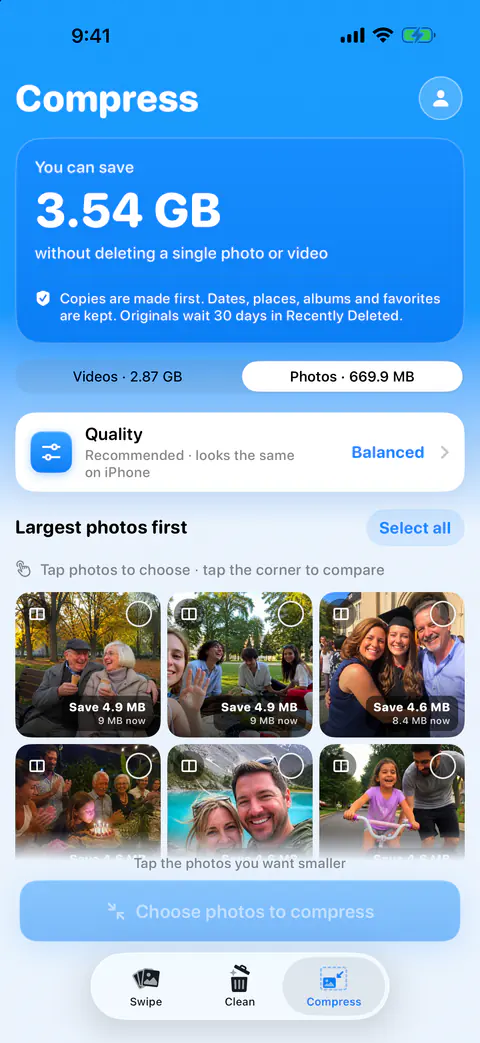
It helps when you want to shrink many photos that are already in your library, without moving files through Preview one by one. The Compress tab says how much you can save without deleting a single photo or video. It offers Best quality, Balanced and Smallest. Photos keep their full resolution and are re-saved at a lower JPEG or HEIC quality: 0.8 for Best quality, 0.6 for Balanced and 0.4 for Smallest.
It helps you keep the details that matter. Copies are made first. Dates, places, albums and favorites are kept. Originals wait 30 days in Recently Deleted. After a run, a results sheet shows each item before and after, and why any were skipped. Nothing is replaced until you confirm, and then iOS asks you to confirm too. You can also throw the copies away and keep every original. More on the screen itself is on compress photos.
It doesn’t compress every photo you have. Compress leaves Live Photos out, so their motion is kept. The Live Photos cleaner on the Clean tab is the way to drop the motion. Items stored only in iCloud aren’t counted or compressed. Download them in Photos to compress them.
It doesn’t compress without limit for free. Free gives you your first 500 deletes, then 25 a day, and 25 compressions a month.
Questions and answers
Does switching to High Efficiency shrink the photos I already took?
No. Apple’s page says that after you change the setting, all new photos and videos use the chosen format. Photos you took before keep the format they were saved in.
Does iPhone already keep smaller copies of my photos?
Only if you use iCloud Photos with Optimize iPhone Storage on. Apple says that setting keeps full-resolution originals in iCloud and storage-saving versions on the iPhone, and that it is on by default. Without iCloud Photos, Apple says photos are stored on the device in their original, high-resolution version.
How small should I make a photo?
As small as still looks right for the job. A photo for a chat or a form can lose more than one you may print or crop later. Look at the copy at full size before you delete anything.
Sources
What this page says about Keepable was checked against the app on .
- Apple Support, Using HEIF or HEVC media on Apple devices — HEIF uses less space than JPEG at the same visual quality, and the High Efficiency and Most Compatible setting; published 5 Dec 2025, read 13 Nov 2026
- iPhone User Guide, Export or compress PDFs and images in Preview on iPhone — export as HEIC or JPEG and the Size slider; iOS 27 guide, read 13 Nov 2026
- iPhone User Guide, Back up and sync your photos and videos with iCloud — Optimize iPhone Storage keeps storage-saving versions on the iPhone and is on by default; iOS 27 guide, read 13 Nov 2026
- Apple Support, Manage your photo and video storage — originals use a lot of space by default, and the iOS 27 path to Optimize iPhone Storage; published 1 Oct 2026, read 13 Nov 2026
- Apple Support, Download iCloud photos and videos — Export Unmodified Originals saves copies into the Files app; published 10 Apr 2026, read 13 Nov 2026
- iPhone User Guide, Take and edit photos or videos in Messages on iPhone — iPhone may compress attachments, and Send Low Quality Photo Previews; iOS 27 guide, read 13 Nov 2026
- iPhone User Guide, See photo and video information on iPhone — the Info panel shows file size, date and place; iOS 27 guide, read 13 Nov 2026
- Apple Support, Delete photos on your iPhone or iPad — back up first, and the 30 days in Recently Deleted; published 31 Mar 2026, read 13 Nov 2026
Get Keepable
Keepable is free to use every day, and Keepable Pro is an optional upgrade.