
Trim first: the cut that costs no quality
The quickest way to make a video smaller is to keep less of it. Trimming changes length, not sharpness. Apple’s steps (iPhone User Guide):
- Open the video in Photos, then tap the Edit button.
- Drag either end of the frame viewer to set where it starts and stops, then tap Done.
- Tap Save Video to keep only the trimmed version, or Save Video as New Clip to keep both.
Know what each button does. After Save Video, Apple says you can still tap Revert to undo the trim, so the cut footage is kept for that. Apple does not say this frees space. If space is your goal, save the trim as a new clip, check it, then delete the long original. Apple notes that a new clip can’t be reverted to the original.
Export a smaller copy with iMovie
This is Apple’s own answer to “compress a video on iPhone” (Apple Support). Apple’s way to reduce the size of a recorded video on iPhone is to open it in iMovie and export it at a lower resolution, which may reduce quality. Apple writes the steps for an iPhone 12 or later on iOS 26 or later, with the latest iMovie, which is free on the App Store.
Put the video in a project
- Open iMovie, tap Start New Project, then tap Movie.
- Tap Media, then tap Video, and tap the video you want to shrink.
- Tap Create Movie, then tap Done. You can edit first, or skip straight to the export.
Export it at a lower resolution
- Tap the Share button, then tap Save or Share Video.
- Tap Options, choose a lower resolution such as 720, 540 or 360, then tap Done.
- Tap Save Video to put the copy in your library. With iCloud Photos on, Apple says it appears on your other devices too.
Here are the sizes Apple gives for one minute of video at each export setting:
| Export resolution | About one minute | Apple’s note |
|---|---|---|
| 1080p | 70 to 105 MB | The default for the iPhone camera and for iMovie |
| 720 | 19 to 27 MB | |
| 540 | 12 to 16 MB | Suits social media |
| 360 | 6 to 9 MB | Suits text messaging |
To work out a whole clip at each size, use the video size calculator.
If the file is still too large, Apple’s advice is to trim the video to make it shorter. To try another size, reopen the project and export again.
Record smaller videos from now on
Compressing after the fact is extra work. Apple’s page lists three settings for “consistently smaller video files” (Apple Support):
- Choose a resolution lower than 1080p HD in Settings, Camera, Record Video.
- Turn off HDR Video in the same place (iPhone User Guide).
- Make sure High Efficiency is chosen under Settings, Camera, Formats.
Apple says faster frame rates and higher resolutions result in larger video files; the formats and frame rates are chosen in Settings, Camera, Record Video. If you shoot in 4K, read how much space 4K video takes before you change anything. Every other setting is in every iPhone video setting explained.
Check the copy before you delete the original
An export makes a new video. The original stays until you delete it, and once deleted it waits in Recently Deleted for 30 days (Apple Support). Use that time well.
- Play the copy to the end. Check the sound, and the moments that matter most.
- Tap the Information button on both. Apple says the file size shows under the name of the device that recorded it (Apple Support).
- Compare the date and place. Apple’s page does not say whether an iMovie export keeps them. If they differ, tap the More button, then Adjust Info, then Adjust Date & Time or Adjust Location (iPhone User Guide).
- With iCloud Photos on, deleting the original deletes it on every device signed in to the same Apple Account (Apple Support).
- To get the space back before the 30 days are up, empty Recently Deleted yourself.
If you have a handful of long clips you want to keep but smaller, shrink old videos you want to keep walks through doing it as a batch. If the video only has to fit in an email, make a video small enough to email is quicker.
Where Keepable helps, and where it doesn’t
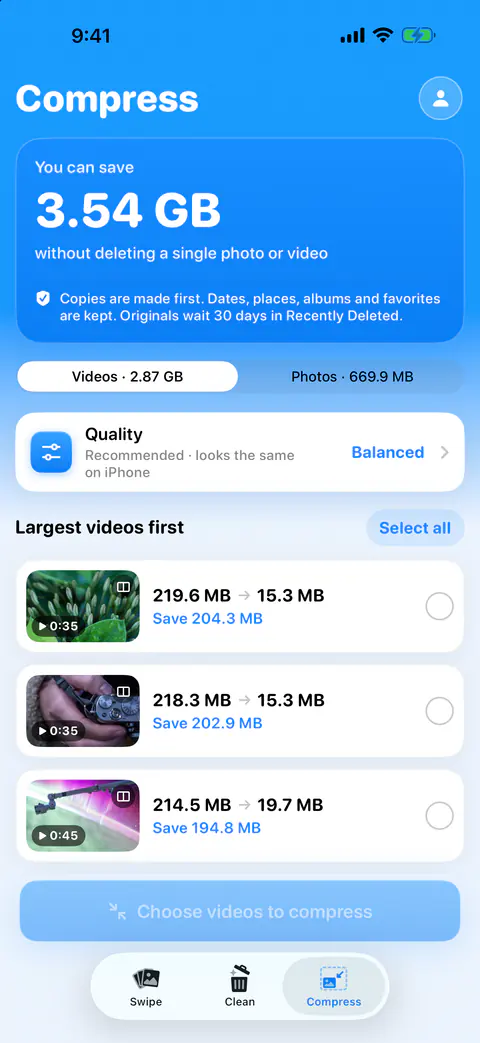
It helps when you want the smaller video to take the original’s place in your library, with no project to build. For videos, Best quality exports at up to 1080p in HEVC, Balanced at 720p and Smallest at 480p. A video already inside a choice’s size is left as it is. Copies are made first. Dates, places, albums and favorites are kept. Originals wait 30 days in Recently Deleted.
It helps you check before anything is swapped. After a run, a results sheet shows each item before and after, and why any were skipped. Nothing is replaced until you confirm, and then iOS asks you to confirm too. You can also throw the copies away and keep every original. More on the screen is on compress videos.
It doesn’t work in the background. Compression runs while Keepable is open. If iOS suspends the app, the run stops and the Lock Screen shows Paused with tap to resume.
It doesn’t download videos to compress them. Items stored only in iCloud aren’t counted or compressed. Download them in Photos to compress them.
Questions and answers
Is iMovie free?
Yes. Apple’s page says to download the latest version of iMovie for iOS for free from the App Store. Its steps are written for an iPhone 12 or later on iOS 26 or later; older setups work, but the steps and options may differ.
Does compressing a video lower its quality?
It can. Apple says exporting at a lower resolution makes the file smaller, but video quality might be reduced, depending on how the video was recorded. A clip watched on a phone may look fine at 720; one you may show on a TV deserves a look first.
Where do I see a video’s file size?
Open the video in Photos and tap the Information button. Apple says the file size appears under the name of the device that recorded it. For a video saved in Files, the size shows next to the file name in list view.
Sources
What this page says about Keepable was checked against the app on .
- Apple Support, Compress a video on iPhone — the iMovie export steps, the one-minute sizes at each resolution, where to see a video’s file size, and settings for smaller videos; published 29 Jul 2026, read 13 Nov 2026
- iPhone User Guide, Trim video length, adjust speed, and edit audio on iPhone — Save Video, Save Video as New Clip and Revert; iOS 27 guide, read 13 Nov 2026
- iPhone User Guide, Change video recording settings on iPhone — where to turn HDR Video off; iOS 27 guide, read 13 Nov 2026
- iPhone User Guide, See photo and video information on iPhone — Adjust Date and Time and Adjust Location, one item or a batch; iOS 27 guide, read 13 Nov 2026
- Apple Support, Delete photos on your iPhone or iPad — Recently Deleted keeps items 30 days, and deletes reach every device with iCloud Photos; published 31 Mar 2026, read 13 Nov 2026
Get Keepable
Keepable is free to use every day, and Keepable Pro is an optional upgrade.