
What the first scan gives you
The first scan answers one question: is there much to gain here? The first scan ends with one result, such as Ready to clear and worth a look up to, and a first step like Clear duplicates with the space it saves. The deeper duplicate scan carries on in the background.
That way the first thing you do is the step that saves the most, not the one at the top of a list.
How to read the Clean tab’s number
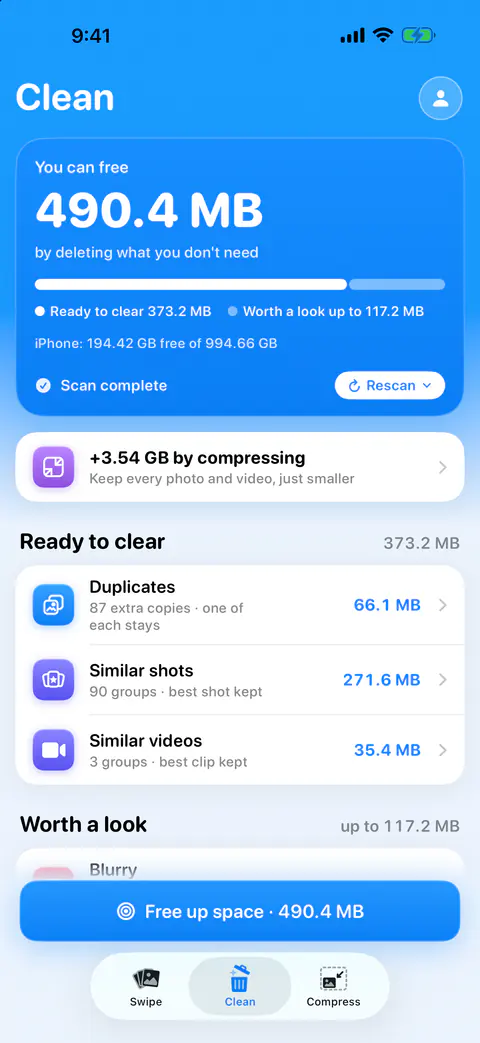
The big figure has two parts, and they mean different things.
| Part | What it holds | How sure it is |
|---|---|---|
| Ready to clear | Copies, near-copies, burst extras and old screenshots | A straight figure |
| Worth a look | Things only you can judge, like blurry shots or big old files | An up-to figure; you’ll keep some |
Ready to clear holds duplicates, similar shots, similar videos, similar screenshots, old screenshots and burst extras. Worth a look holds blurry, large and old, selfies, documents and receipts, whiteboards and parking, and chat media. You confirm every step. Each file is counted once. Deleted items stay in Recently Deleted for 30 days.
Two more figures sit near it. Files stored only in iCloud are left out of the you-can-free figure, because deleting them frees nothing on the iPhone. The Clean tab shows their size apart, next to your iPhone’s free and total storage. Below the piles, the Clean tab adds what compressing would save on top, keeping every photo and video, just smaller.
Once the app has watched your library for a while, a date appears too. Once there is enough history, the Clean tab estimates when your iPhone will be full at your pace and how much later clearing everything would move that date.
Turn the number into a plan
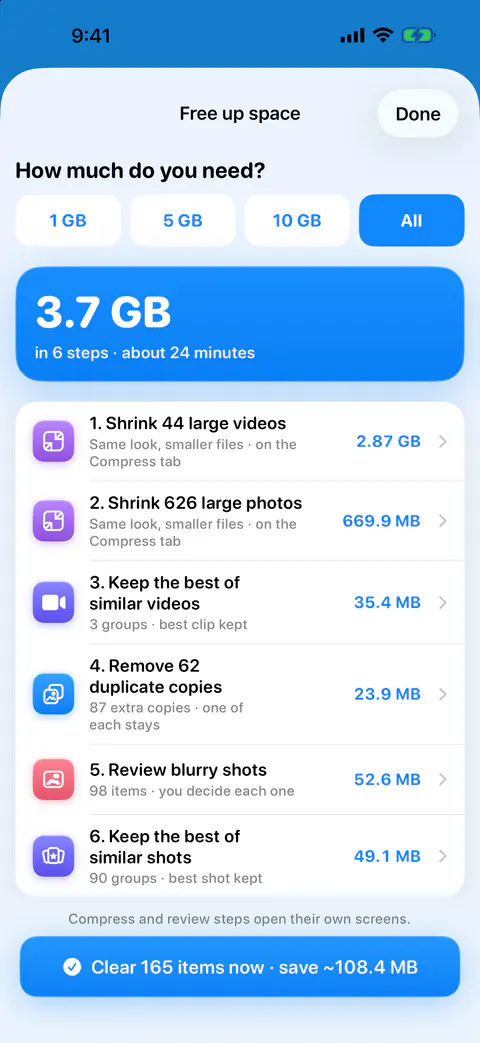
A number alone doesn’t tell you where to start. Free up space asks how much you need, 1, 5 or 10 GB or all of it, and answers with the shortest list of steps across the Clean piles and Compress, each step opening its screen. If your target can’t be reached, it tells you the real figure instead of pretending.
Free users can run the free-up plan step by step within their deletes. Running all the ready steps at once, with one confirmation and one iOS prompt, is Pro.
Keep the number on your Home Screen
The Storage widget shows how full your iPhone is and how much Keepable could free, in two Home Screen sizes and two Lock Screen sizes. It is a quiet way to notice when the camera roll starts filling again. The widgets page has the others.
Why iPhone Storage may not move yet
Deleting is not the same as freeing. Apple’s page says deleted photos and videos stay in Recently Deleted for 30 days before they are deleted for good (Apple Support).
After a delete, Keepable says the space is in Recently Deleted and is freed when you empty it, and offers the steps and an Open Photos button. Keepable keeps a running total of what it deleted until you empty Recently Deleted. It can’t see that album, so it can’t tell when you’ve emptied it. The guide to storage still full after deleting covers the other reasons.
What the estimate leaves out
The estimate is about photos and videos. Apps, messages and system files are outside it. To see those, go to Settings, tap General, then tap iPhone Storage, where Apple lists each app and categories such as Messages, Other and System (Apple Support). The guide to checking iPhone storage explains each category. Ready to clear holds duplicates, similar shots, similar videos, similar screenshots, old screenshots and burst extras. Worth a look holds blurry, large and old, selfies, documents and receipts, whiteboards and parking, and chat media.
Where Keepable helps, and where it doesn’t
It helps when you need to know whether a clean-up is worth the time before you start. Your first scan shows how much space you could get back and where it is. The Storage widget keeps that number on your Home Screen.
It helps when you have a target, like room for an update. Free up space asks how much you need, 1, 5 or 10 GB or all of it, and answers with the shortest list of steps across the Clean piles and Compress, each step opening its screen. The guide to what to delete first puts photos in context with everything else.
It doesn’t count photos that aren’t on the iPhone. Files stored only in iCloud are left out of the you-can-free figure, because deleting them frees nothing on the iPhone. The Clean tab shows their size apart, next to your iPhone’s free and total storage.
Questions and answers
Why is the estimate bigger than what I actually freed?
Part of it is a ceiling, not a promise: The Clean tab leads with how much you can free by deleting what you don’t need, split into Ready to clear and Worth a look, which it gives as an up-to figure. And space you delete only comes back once Recently Deleted is emptied.
Does the estimate include apps and System Data?
No. Ready to clear holds duplicates, similar shots, similar videos, similar screenshots, old screenshots and burst extras. Worth a look holds blurry, large and old, selfies, documents and receipts, whiteboards and parking, and chat media. Apps and system files are listed in Settings, under General, iPhone Storage.
Can it free 5 GB in one tap?
Free up space asks how much you need, 1, 5 or 10 GB or all of it, and answers with the shortest list of steps across the Clean piles and Compress, each step opening its screen. Free users can run the free-up plan step by step within their deletes. Running all the ready steps at once, with one confirmation and one iOS prompt, is Pro.
Sources
What this page says about Keepable was checked against the app on .
- Apple Support, Delete photos on your iPhone or iPad — where to see the storage left on the device, and deleted items waiting 30 days in Recently Deleted; dated 31 March 2026, read 13 Nov 2026
- Apple Support, How to check the storage on your iPhone and iPad — Settings, General, iPhone Storage lists apps and storage categories such as Photos, Messages, Other and System, read 13 Nov 2026
Get Keepable
Keepable is free to use every day, and Keepable Pro is an optional upgrade.