
Every video, with its size before and after
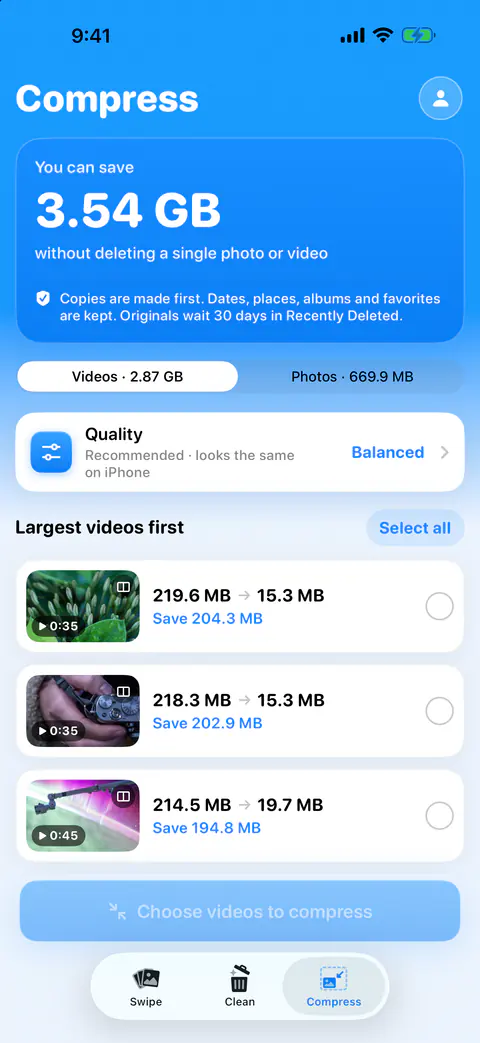
The Videos side of the Compress tab puts the biggest files first and shows the result for each before you choose. The Compress tab lists photos over 1 MB and videos over 20 MB.
That row-by-row view matters, because the saving varies a lot from clip to clip. A long video shot at a high resolution has much more to give than a short one already at a low resolution.
Pick a quality
For videos, Best quality exports at up to 1080p in HEVC, Balanced at 720p and Smallest at 480p. A video already inside a choice’s size is left as it is. Apple’s iMovie guide shows why resolution matters so much: it puts a one-minute video at roughly 70 to 105 MB at 1080p and 19 to 27 MB at 720 (Apple Support).
| Choice | Good for |
|---|---|
| Best quality | Videos you’ll watch on a TV or might edit later |
| Balanced | Most videos you only watch on the phone |
| Smallest | Clips you keep as a record, not to watch again |
Run a batch
- Open the Compress tab and stay on Videos.
- Set Quality.
- Tap the videos you want smaller, or tap Select all.
- Start the run and leave the app open.
- Read the results, then replace the originals and confirm.
Compression runs while Keepable is open. If iOS suspends the app, the run stops and the Lock Screen shows Paused with tap to resume. After a run, a results sheet shows each item before and after, and why any were skipped. Nothing is replaced until you confirm, and then iOS asks you to confirm too. You can also throw the copies away and keep every original.
One compression run takes up to 500 items. With more selected, Keepable offers to keep the largest 500. A run is also capped at 10 GB of videos, so a very large library takes a few rounds.
Follow it from the Lock Screen
The progress also shows outside the app. A compression run shows on the Lock Screen and in the Dynamic Island: how many are done and how much it will save so far, then Smaller copies ready with a tap to replace the originals. If it says Paused, the app was suspended; tap it to go back and resume. Compression runs while Keepable is open. If iOS suspends the app, the run stops and the Lock Screen shows Paused with tap to resume.
Live Activities can be switched off per app. Apple’s guide says to go to Settings, tap Apps, tap the app, then tap Live Activities (Apple Support). Compression works either way. See widgets and the Live Activity.
What happens to the originals
Copies are made first. Dates, places, albums and favorites are kept. Originals wait 30 days in Recently Deleted. Apple says items in Recently Deleted are deleted for good after 30 days (Apple Support). If a video might be edited or shown on a big screen one day, keep a copy elsewhere first.
Free and Pro
Free gives you your first 500 deletes, then 25 a day, and 25 compressions a month. On the free plan, choosing more than you have left this month brings an offer to compress the largest ones now, and Pro does them all at once. Keepable Pro adds unlimited deletes and compressions, compress everything at once, keep the best in one tap, and the private vault.
Apple’s own way: iMovie
Apple’s answer to compressing a video is iMovie, which is free: you add the video to a project and export it at a lower resolution (Apple Support). It makes a new file, so it suits one video you want to send, such as a video small enough to email. For dozens of videos you want to keep, a batch in one place is faster.
Where Keepable helps, and where it doesn’t
It helps when you want to keep the video and lose the bulk. The Compress tab says how much you can save without deleting a single photo or video. The guide to shrinking old videos you want to keep covers when that’s the right call.
It helps when you want to see the saving per video before you commit. After a run, a results sheet shows each item before and after, and why any were skipped. Nothing is replaced until you confirm, and then iOS asks you to confirm too. You can also throw the copies away and keep every original.
It doesn’t compress a video that isn’t on the iPhone itself. Items stored only in iCloud aren’t counted or compressed. Download them in Photos to compress them.
It doesn’t compress a video twice. Keepable won’t compress something it already compressed, because re-compressing would hurt quality.
Questions and answers
Will a compressed video look worse?
Compression offers three choices: Best quality, which looks visually identical, Balanced, the recommended one that looks the same on iPhone, and Smallest, with some softness up close. On a big TV the difference shows more than on the phone, so use Best quality for videos you’ll watch that way.
Can I lock my iPhone while it compresses?
Not for long. Compression runs while Keepable is open. If iOS suspends the app, the run stops and the Lock Screen shows Paused with tap to resume.
Is there a limit on how many videos I can compress?
Free gives you your first 500 deletes, then 25 a day, and 25 compressions a month. One compression run takes up to 500 items. With more selected, Keepable offers to keep the largest 500.
Sources
What this page says about Keepable was checked against the app on .
- Apple Support, Compress a video on iPhone — compressing with iMovie by exporting at a lower resolution, and the approximate size of a one-minute video at each resolution, read 13 Nov 2026
- Apple Support, Access features from the iPhone Lock Screen — Live Activities on the Lock Screen and where their setting is (iPhone User Guide for iOS 27), read 13 Nov 2026
- Apple Support, Delete photos on your iPhone or iPad — items in Recently Deleted are deleted for good after 30 days; dated 31 March 2026, read 13 Nov 2026
Get Keepable
Keepable is free to use every day, and Keepable Pro is an optional upgrade.