
Why videos are the place to look
Video size grows fast with resolution and frame rate. Apple’s iMovie guide gives a sense of scale: a one-minute video at 1080p, the default camera setting, is roughly 70 to 105 MB (Apple Support). The 4K video guide has the numbers for each setting.
So the fastest way to free space is usually a short list of big files, not a long list of small ones.
The Large and old pile
- Open the Clean tab.
- Under Worth a look, tap Large and old.
- Play anything you’re unsure of, then delete what you won’t miss.
Large and old lists photos over 8 MB and videos over 100 MB taken more than 18 months ago. Favorites and photos you kept stay out. It goes by size and the date taken, not by whether you’ve watched a video, so look before you delete.
It sits under Worth a look for that reason: big and old is not the same as unwanted. The Clean tab leads with how much you can free by deleting what you don’t need, split into Ready to clear and Worth a look, which it gives as an up-to figure.
Two decks for swiping through big files
On the Swipe tab, the By kind row has two decks that put size first. The Swipe tab’s By kind row has five one-tap decks: Biggest first, Likely junk, Screenshots, Videos and Shuffle.
- Biggest first. Biggest first puts your videos and large photos in one deck, largest first.
- Videos. Your videos one at a time, to keep or mark with a swipe. A fresh Biggest first or Shuffle deck holds up to 100 photos, Videos up to 200, Screenshots up to 300 and Likely junk up to 60.
The swipe review page explains what a left swipe does and doesn’t do.
Delete it, or keep it smaller
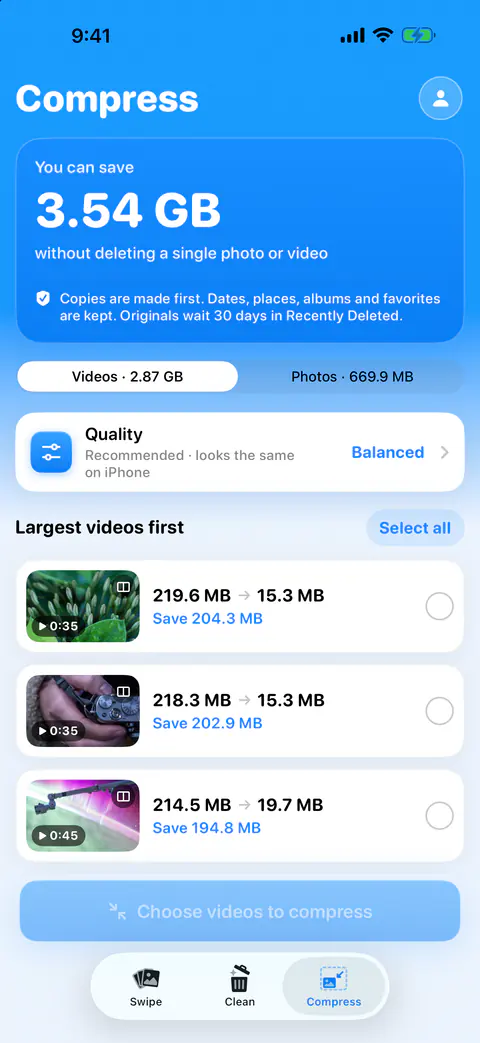
The Compress tab is a second list of big videos, largest first. The Compress tab lists photos over 1 MB and videos over 20 MB. Next to each one you see what it would shrink to. For videos, Best quality exports at up to 1080p in HEVC, Balanced at 720p and Smallest at 480p. A video already inside a choice’s size is left as it is.
| If the video is | A good next step |
|---|---|
| A clip you’ll never miss | Delete it from Large and old or a deck |
| One you want, but not at full size | Compress it; see compress videos |
| One you want at full quality | Move a copy off the phone first; see where to keep photos off your iPhone |
| A near-copy of another clip | Check the Similar videos pile on the Clean tab |
What the large videos finder does not do
- It doesn’t know what you’ve watched. Size and date are all it has. Photos over 8 MB and videos over 100 MB, taken more than 18 months ago.
- It doesn’t count videos stored only in iCloud. Files stored only in iCloud are left out of the you-can-free figure, because deleting them frees nothing on the iPhone. The Clean tab shows their size apart, next to your iPhone’s free and total storage.
- It doesn’t compress those either. Items stored only in iCloud aren’t counted or compressed. Download them in Photos to compress them.
Where Keepable helps, and where it doesn’t
It helps when you want the biggest files first, without sorting by hand. Biggest first puts your videos and large photos in one deck, largest first. The guide to finding large videos covers other ways to spot them.
It helps when a video is worth keeping but not at its full size. Below the piles, the Clean tab adds what compressing would save on top, keeping every photo and video, just smaller.
It doesn’t decide which memories matter. Large and old lists photos over 8 MB and videos over 100 MB taken more than 18 months ago. Favorites and photos you kept stay out. That part is yours.
Questions and answers
Does it find videos I never watch?
No. Large and old lists photos over 8 MB and videos over 100 MB taken more than 18 months ago. Favorites and photos you kept stay out. It goes by size and the date a video was taken, so an old clip you love can be on the list.
Does it include videos stored only in iCloud?
No. Files stored only in iCloud are left out of the you-can-free figure, because deleting them frees nothing on the iPhone. The Clean tab shows their size apart, next to your iPhone’s free and total storage.
Should I delete a big video or compress it?
Delete it if you won’t miss it. Compress it if you want to keep it but not at full size. The Compress tab says how much you can save without deleting a single photo or video.
Sources
What this page says about Keepable was checked against the app on .
- Apple Support, Record a video with your iPhone camera — faster frame rates and higher resolutions make larger video files (iPhone User Guide), read 13 Nov 2026
- Apple Support, Compress a video on iPhone — approximate sizes of a one-minute video at each iMovie export resolution, read 13 Nov 2026
Get Keepable
Keepable is free to use every day, and Keepable Pro is an optional upgrade.