
The last look
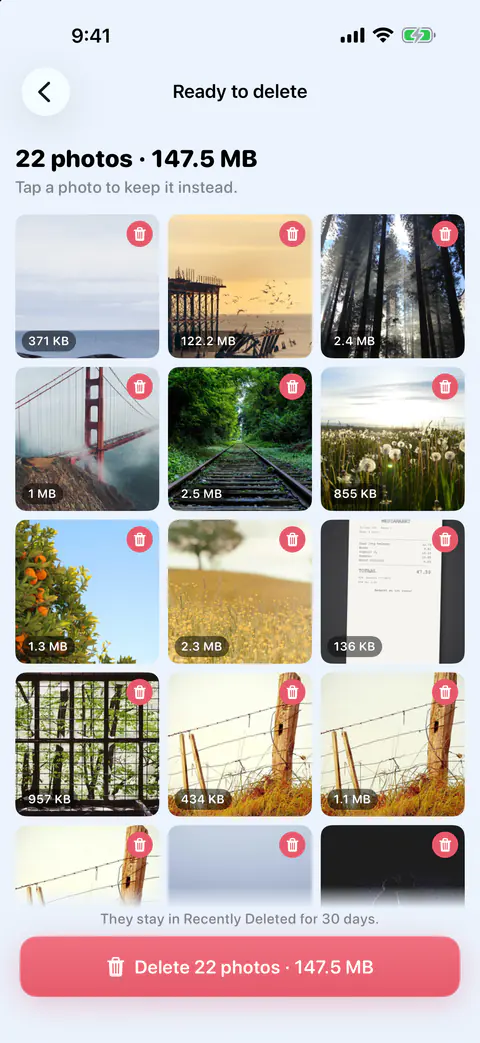
Swiping is fast, and fast means the odd mistake. This screen is where you catch it. Nothing is deleted without your review. A swipe only marks a photo; you confirm every batch.
Every tile shows its size, so the big ones stand out. If you see a photo you want after all, tap it and it drops out of the batch.
Delete the batch
- Open Marked on the Swipe tab, then Ready to delete.
- Scroll the grid and tap any photo you want to keep.
- Tap the Delete button at the bottom.
- Confirm in the iOS prompt.
Ready to delete adds no confirmation of its own: iOS asks you to confirm, and if you cancel, nothing is deleted and the photos stay marked. In Ready to delete, Command-Delete presses the Delete button, through the same iOS confirmation.
When the free deletes run short
On the free plan, marking is never limited; deleting is. Free gives you your first 500 deletes, then 25 a day, and 25 compressions a month. The free daily deletes are shared by swipe review and the Clean tab.
Ready to delete doesn’t leave you stuck when the batch is bigger than what’s left. When your free deletes can’t cover everything marked, Ready to delete offers to delete the biggest ones now and keeps the others marked. The free and Pro page explains the allowance.
After the delete: Recently Deleted
Photos deleted in Keepable go to Recently Deleted in the Photos app. iOS gives apps no way to delete them for good straight away. Apple’s page says deleted photos and videos stay in Recently Deleted for 30 days, then they’re deleted for good (Apple Support). Until then they still use space.
The app says so right after the delete. After a delete, Keepable says the space is in Recently Deleted and is freed when you empty it, and offers the steps and an Open Photos button. To free the space sooner, open Photos, scroll down to Utilities, open Recently Deleted, tap Select, then Delete All. On iOS versions before 18, Recently Deleted sits under Albums instead.
Apple’s own steps to empty it are in the Recently Deleted guide, and storage still full after deleting covers the other reasons iPhone Storage may lag.
If some photos couldn’t be deleted
If some photos can’t be removed, Keepable says how many and why that may be: they may be stored only in iCloud, in a shared album, or already gone. One more case to know: Apple’s page says photos added by syncing with a computer can’t be deleted directly on the iPhone in Photos (Apple Support). The guide to photos synced from a computer explains what to do.
Changed your mind?
Deleted with Keepable, in You, shows what the app sent to Recently Deleted by day. Keepable can’t bring photos back itself: you recover them in Photos within 30 days.
To recover a photo, Apple’s steps are: open Photos, tap Collections, open Recently Deleted under Utilities, unlock it, tap Select, choose the photo, then tap the More button and Recover (Apple Support). The guide to recovering photos deleted by mistake has more.
Where Keepable helps, and where it doesn’t
It helps to see the whole batch, with sizes, before anything moves. Ready to delete shows every marked photo in one grid with the count and total size. Tap a photo to keep it instead, and one button deletes the rest.
It helps to know where the space went. Keepable keeps a running total of what it deleted until you empty Recently Deleted. It can’t see that album, so it can’t tell when you’ve emptied it.
It doesn’t skip Recently Deleted, and no app can. Photos deleted in Keepable go to Recently Deleted in the Photos app. iOS gives apps no way to delete them for good straight away. Emptying that album is a step you take in Photos (Apple Support).
Questions and answers
Does the space come back as soon as I tap Delete?
No. Photos deleted in Keepable go to Recently Deleted in the Photos app. iOS gives apps no way to delete them for good straight away. After a delete, Keepable says the space is in Recently Deleted and is freed when you empty it, and offers the steps and an Open Photos button.
Can Keepable bring back a photo I deleted?
Not itself. Deleted with Keepable, in You, shows what the app sent to Recently Deleted by day. Keepable can’t bring photos back itself: you recover them in Photos within 30 days.
What happens if I cancel the iOS prompt?
Ready to delete adds no confirmation of its own: iOS asks you to confirm, and if you cancel, nothing is deleted and the photos stay marked.
Sources
What this page says about Keepable was checked against the app on .
- Apple Support, Delete photos on your iPhone or iPad — the 30 days in Recently Deleted, recovering photos, and deleting them for good; dated 31 March 2026, read 13 Nov 2026
Get Keepable
Keepable is free to use every day, and Keepable Pro is an optional upgrade.