
How a swipe session goes

Each photo fills the screen with its date and size in the corner, so you can judge it in a second or two. You then pick one of four moves.
- Right, or the Keep button. The photo stays, and the count on Keep goes up by one.
- Left, or the Delete button. The photo is marked, not deleted. Photos you swipe left wait in Marked on the Swipe tab until you review them in Ready to delete.
- The bookmark in the middle. Between Delete and Keep sits a Decide later button that saves the photo to Decide later and shows the next one. Decide later is free for everyone.
- Up. Dragging a photo up shows your albums as bubbles to drop it into, with New to make an album on the spot and All albums for the full list.
The counts on the Delete and Keep buttons go up as you work, so you can see how a deck is going without leaving it.
Filing photos into albums while you sort
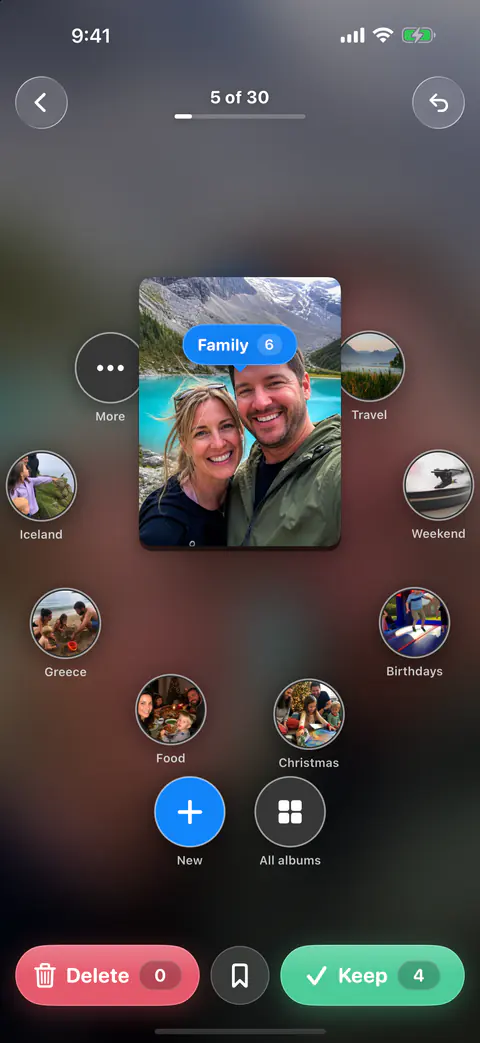
Sorting and cleaning are usually two jobs. Here they can be one: keep the good shot and put it where it belongs in the same move. Drag a photo up to drop it straight into an album. If you want to tidy albums as a separate task, the guide to sorting photos into albums quickly covers the Photos app’s own way too.
Undo, breaks and screenshots
Fast decisions mean the odd wrong one. The Undo button in swipe review takes back your last decision. With a keyboard, Command-Z does the same.
Long decks are split up so you don’t swipe on autopilot. Every 30 photos a deck or month pauses on a checkpoint card with Keep going and Done for today. Today’s mix is short and simply ends.
Screenshots get their own question, because many are only useful for a while. When a screenshot comes up, Keep for… lets you keep it a week, a month or always, or delete it now. When the time is up it comes back in your mix. Nothing deletes itself.
Picking what to swipe
You choose the pile before you start. The main ways in sit on the Swipe tab:
| Way in | What you get |
|---|---|
| Months | The Swipe tab shows your months as tiles with how far each one is reviewed, and See all opens every month to choose from. The month-by-month review page goes through it. |
| Today’s mix | A dozen photos a day, picked for you: this day in past years, what’s new, old screenshots. See Today’s mix. |
| By kind | The Swipe tab’s By kind row has five one-tap decks: Biggest first, Likely junk, Screenshots, Videos and Shuffle. Likely junk gathers the extra copies from exact duplicate sets, never the copy Keepable would keep, then the blurriest photos, and it arrives already marked: swipe right to keep one. |
| Ask your library | Ask your library on the Swipe tab turns a request like receipts from 2024 or blurry beach photos into filters, shows them before doing anything, and opens what it finds as a deck to swipe. It never deletes from a search. |
| A Clean pile | A review pile can also be swiped as a deck with Swipe these, instead of picked from its grid. |
Today’s mix and the one-tap decks only draw on photos you haven’t kept or marked yet. That way a photo you already kept doesn’t come back to ask again.
When the marked photos actually go
To clear the pile, open Ready to delete, look over the grid and tap the Delete button. Ready to delete adds no confirmation of its own: iOS asks you to confirm, and if you cancel, nothing is deleted and the photos stay marked.
Even then, Photos keeps a copy for a while. Apple’s page says deleted photos and videos go to Recently Deleted for 30 days before they are deleted for good (Apple Support). Photos deleted in Keepable go to Recently Deleted in the Photos app. iOS gives apps no way to delete them for good straight away. So the space comes back when that album is emptied, as the Recently Deleted guide explains.
What swipe review does not do
- It doesn’t delete for you. Nothing is deleted without your review. A swipe only marks a photo; you confirm every batch.
- It doesn’t lift the free delete limit. Marking is open, deleting is counted. On the free plan you can keep swiping after your free deletes run out: the rest wait in Marked.
- It doesn’t need a touch screen. With a hardware keyboard, the arrow keys work in swipe review: left marks to delete, right keeps, down saves to Decide later and up opens Album. Command-Z undoes and Escape goes back.
- It doesn’t shut out VoiceOver. With VoiceOver, each photo in swipe review offers Keep Photo, Delete Photo, Decide Later and Add to Album actions, and reads the photo’s type, date, place and position in the deck.
Where Keepable helps, and where it doesn’t
It helps when the job is too big for one sitting. A month you have started shows how much is done, how many photos are left and about how long they will take, at roughly 1.5 seconds a photo. The guide to deleting photos faster sets out a plan around that pace.
It helps when you’d rather not judge every photo again. Today’s mix and the one-tap decks only draw on photos you haven’t kept or marked yet.
It doesn’t beat Photos for one clear batch, such as a single burst or a run of screenshots you already know you don’t want. Apple’s own Select, then Trash, does that in a few taps (Apple Support). Deleted photos stay in Recently Deleted for 30 days. We tell you, and show you how to get the space back now.
Questions and answers
Does swiping left delete the photo straight away?
No. Swipe right to keep a photo and left to mark it, or use the Keep and Delete buttons. Marked photos wait until you check them and tap Delete. Ready to delete adds no confirmation of its own: iOS asks you to confirm, and if you cancel, nothing is deleted and the photos stay marked.
What if I swipe the wrong way?
The Undo button in swipe review takes back your last decision. With a keyboard, Command-Z does the same. A photo that is only marked can still be saved later. Ready to delete shows every marked photo in one grid with the count and total size. Tap a photo to keep it instead, and one button deletes the rest.
Is swipe review free?
The free plan includes swipe review, every cleanup finder, contacts cleanup and widgets. Free gives you your first 500 deletes, then 25 a day, and 25 compressions a month. On the free plan you can keep swiping after your free deletes run out: the rest wait in Marked.
Sources
What this page says about Keepable was checked against the app on .
- Apple Support, Delete photos on your iPhone or iPad — deleted photos wait in Recently Deleted for 30 days before they are gone; the page is dated 31 March 2026, read 13 Nov 2026
Get Keepable
Keepable is free to use every day, and Keepable Pro is an optional upgrade.