
Where your screenshots live
Every screenshot lands in your library by default. Apple’s guide says screenshots are saved to the photo library automatically, and you can see them all in Photos under Collections, then Media Types, then Screenshots (Apple Support).
That album is where the cleaner starts. Screenshots older than 30 days join today’s mix and the Old screenshots pile on the Clean tab.
If you only want to clear them all in one go, the Photos app can do that without any help; the guide to deleting all screenshots has the steps. For how much room they use, see do screenshots take up much storage?.
The Old screenshots pile
- Open the Clean tab.
- Under Ready to clear, tap Old screenshots.
- Look through the grid and keep what you still need.
- Delete the rest and confirm.
Long piles are shown 100 at a time by default, and you can switch to 50, 250 or show all. A long pile is easier to face a hundred at a time.
A review pile can also be swiped as a deck with Swipe these, instead of picked from its grid.
Repeated screenshots
The same map, the same chat, the same boarding pass, taken three times because you weren’t sure the first one worked. Those go to a pile of their own. Similar shots, bursts and repeated screenshots. The guide to duplicate screenshots explains why they pile up.
The Screenshots deck
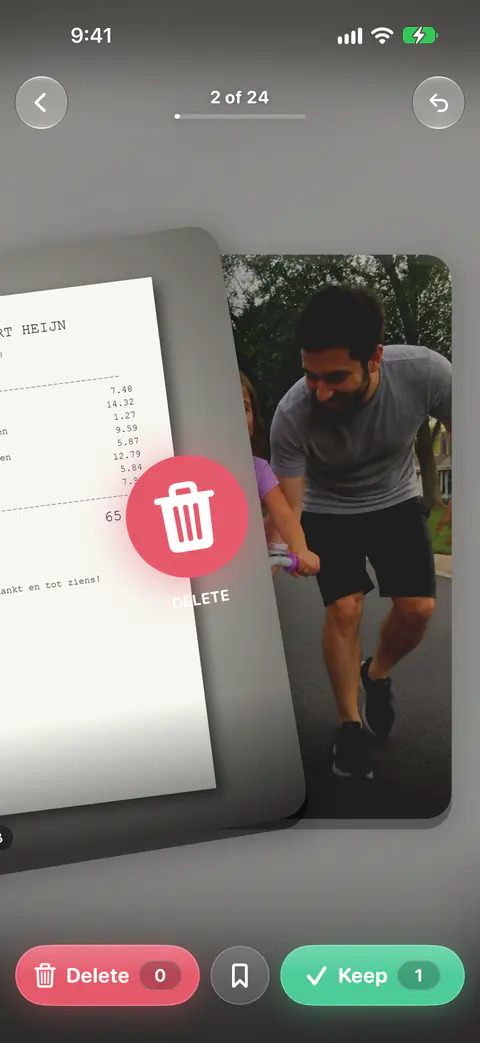
When you’d rather decide one at a time, there is a deck for that on the Swipe tab. The Swipe tab’s By kind row has five one-tap decks: Biggest first, Likely junk, Screenshots, Videos and Shuffle. A fresh Biggest first or Shuffle deck holds up to 100 photos, Videos up to 200, Screenshots up to 300 and Likely junk up to 60.
A timer for screenshots you need for now
Some screenshots matter until a date: a ticket, a parking spot, a code. The timer lets you put off the choice without forgetting it. When a screenshot comes up, Keep for… lets you keep it a week, a month or always, or delete it now. When the time is up it comes back in your mix. Nothing deletes itself. The text in the screenshot is read on the iPhone to suggest a time, such as until the flight.
Save the good bits first
Some screenshots hold a quote, a page or a post you want to keep, even if the picture can go. Clippings, on the Clean tab, collects quotes, pages and posts from your screenshots. The Clippings widget shows your saved quotes, book pages or posts, a new one every hour. It needs iOS 17 or later.
Clippings you saved are left out of both the Old screenshots pile and the Documents and receipts pile. Documents and receipts finds receipts, documents and screenshots of text by reading the text in each photo on the iPhone. Clippings you saved stay out.
What the screenshots cleaner does not do
- It doesn’t find screen recordings. They are videos in their own album, not screenshots. Apple’s guide puts them under Media Types, then Screen Recordings (Apple Support). Old screenshots lists screenshots from iOS’s Screenshots album that are older than 30 days. Clippings you saved stay out. The screen recordings guide covers them.
- It doesn’t move the 30-day line. Screenshots older than 30 days join today’s mix and the Old screenshots pile on the Clean tab. There is no setting for it.
- It doesn’t delete on a timer. Only you delete. Nothing is deleted without your review. A swipe only marks a photo; you confirm every batch.
Where Keepable helps, and where it doesn’t
It helps when you want to keep this month’s screenshots and clear the rest. Old screenshots lists screenshots from iOS’s Screenshots album that are older than 30 days. Clippings you saved stay out. For a phone full of class notes and slides, see a student’s phone full of screenshots.
It helps when you’d delete more if you could save the one useful line first. Clippings, on the Clean tab, collects quotes, pages and posts from your screenshots.
It doesn’t beat Photos when every screenshot can go. In the Screenshots album, tap Select, choose them, then tap the Trash button (Apple Support). Photos deleted in Keepable go to Recently Deleted in the Photos app. iOS gives apps no way to delete them for good straight away.
Questions and answers
Does it find screen recordings too?
Not as a pile of their own. Old screenshots lists screenshots from iOS’s Screenshots album that are older than 30 days. Clippings you saved stay out. Photos keeps screen recordings in their own Media Types album, where you can select and delete them.
Will a screenshot delete itself when its timer runs out?
No. When a screenshot comes up, Keep for… lets you keep it a week, a month or always, or delete it now. When the time is up it comes back in your mix. Nothing deletes itself.
Can I change the 30-day cut-off for old screenshots?
No. Screenshots older than 30 days join today’s mix and the Old screenshots pile on the Clean tab. There is no setting to move that line.
Sources
What this page says about Keepable was checked against the app on .
- Apple Support, Take a screenshot on iPhone — screenshots save to the photo library and are grouped under Collections, Media Types, Screenshots (iPhone User Guide for iOS 27), read 13 Nov 2026
- Apple Support, Take a screen recording on iPhone — screen recordings save to the photo library under Media Types, Screen Recordings (iPhone User Guide for iOS 27), read 13 Nov 2026
- Apple Support, Delete photos on your iPhone or iPad — selecting and deleting several photos at once; the page is dated 31 March 2026, read 13 Nov 2026
Get Keepable
Keepable is free to use every day, and Keepable Pro is an optional upgrade.