
Three piles for the near-misses
Duplicates are copies of one picture. These are different pictures that are almost the same, and each has its own pile on the Clean tab:
- Similar shots, Similar videos and Similar screenshots. Groups of photos, clips or screenshots that are nearly the same. Similar shots, bursts and repeated screenshots.
- Burst extras. Burst extras keeps the pick of each burst, the one you or iOS chose, and selects the rest for you to delete. You can change anything before you delete.
- Blurry. Blurry and low-quality photos.
Exact copies have their own page: the duplicate finder.
How the keeper is chosen
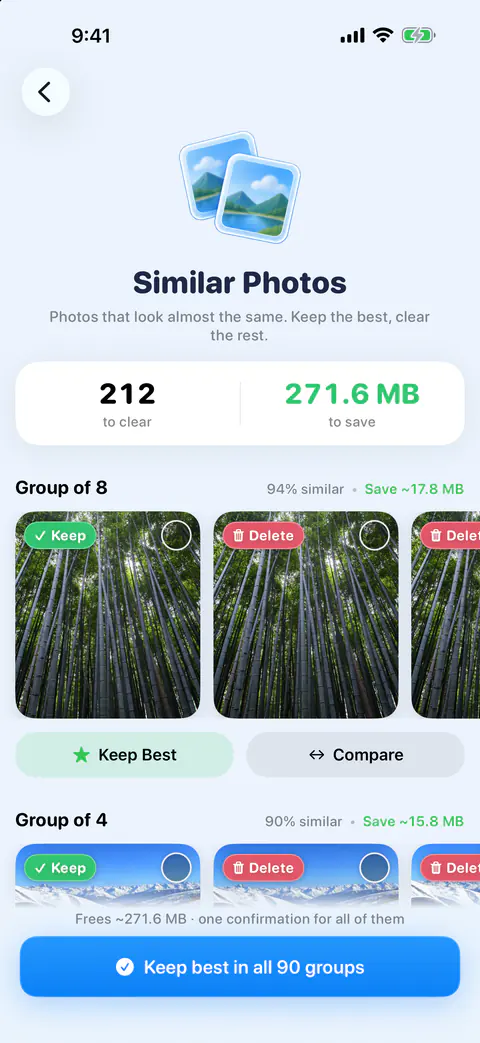
In a group of near-twins, the hard part is picking. Each group puts its suggested keeper first and says why. The suggested keeper’s reason is named, such as Highest resolution, Favorite, Edited or Has a location, and for similar shots what the picture shows: Eyes open, Sharpest, Not cut off or Best light.
The check looks for the small things you’d look for yourself. If the suggested keeper has someone blinking or cut off and another shot doesn’t, that shot becomes the suggestion, but never in place of a favorite.
Sometimes there is no winner, and it says so. When nothing in the pictures tells a set apart, Keepable says All look good: keep any one, instead of inventing a reason. That is your cue to keep whichever one you like.
Clearing a group, free or Pro
- Open the Clean tab and tap Similar shots.
- Scroll through a group and check the photo marked Keep.
- On the free plan, pick the ones to clear and delete them.
- Confirm the delete.
Keep Best on a set is Pro: it keeps the suggested photo and deletes the rest after you confirm. Free users see a Pro badge on it and can still pick photos in a set to delete, or use Compare. Keep best in all groups, a Pro action, keeps the best shot in every group with one confirmation, then one iOS prompt. The rest wait in Recently Deleted for 30 days.
If a grid feels like too much, take the pile one photo at a time. A review pile can also be swiped as a deck with Swipe these, instead of picked from its grid. The swipe review page shows how a deck works.
Bursts: your pick stays
A burst is a run of photos taken in rapid succession. Apple’s page says you pick the ones to keep, with gray dots marking suggested ones, or delete the whole burst (Apple Support). Burst mode takes photos in rapid succession while you drag the Shutter button left; you then pick which photos to keep, with gray dots marking suggested ones, or delete the entire burst.
Keepable works from the same choice, so a pick you made in Photos is respected. Burst extras keeps the pick of each burst, the one you or iOS chose, and selects the rest for you to delete. You can change anything before you delete. The burst photos guide shows the Photos way step by step.
The blurry pile
Blurry lists out-of-focus and low-quality shots, blurriest first, found by a sharpness check run on the iPhone. You decide each one. The check covers photos, not videos, so a shaky clip won’t show up here.
The blurriest photos also feed a deck on the Swipe tab. Likely junk gathers the extra copies from exact duplicate sets, never the copy Keepable would keep, then the blurriest photos, and it arrives already marked: swipe right to keep one.
A soft photo can still be the only one of a moment, so nothing here is cleared for you. The guide to finding blurry photos has tips for judging them.
What these finders do not do
- They don’t know who anyone is. The best-shot check only finds where faces are and whether eyes are open, on the iPhone. Nothing in it recognises or compares who is in a photo.
- They don’t look at iCloud-only originals. Scans, matching and compression work only on photos and videos already on the iPhone. Keepable doesn’t download originals from iCloud to scan them.
- They don’t delete without you. Nothing is deleted without your review. A swipe only marks a photo; you confirm every batch.
Where Keepable helps, and where it doesn’t
It helps when you have ten tries at the same photo and can’t face choosing. Every match is checked on your iPhone, and every set suggests the best photo to keep. The guide to picking the best of similar shots covers what to look for.
It doesn’t know your taste. A sharp photo with open eyes can still be the worse one to you. When nothing in the pictures tells a set apart, Keepable says All look good: keep any one, instead of inventing a reason.
It doesn’t clear every group in one tap on the free plan. Keep Best on a set is Pro: it keeps the suggested photo and deletes the rest after you confirm. Free users see a Pro badge on it and can still pick photos in a set to delete, or use Compare.
Questions and answers
How does it decide which similar photo is best?
The suggested keeper’s reason is named, such as Highest resolution, Favorite, Edited or Has a location, and for similar shots what the picture shows: Eyes open, Sharpest, Not cut off or Best light. If the suggested keeper has someone blinking or cut off and another shot doesn’t, that shot becomes the suggestion, but never in place of a favorite.
Does it recognise the people in my photos?
No. The best-shot check only finds where faces are and whether eyes are open, on the iPhone. Nothing in it recognises or compares who is in a photo.
Does the blurry pile include videos?
No. Blurry lists out-of-focus and low-quality shots, blurriest first, found by a sharpness check run on the iPhone. You decide each one. The sharpness check looks at photos, not videos.
Sources
What this page says about Keepable was checked against the app on .
- Apple Support, Capture action shots with Burst mode on your iPhone camera — how a burst is taken, the gray dots on suggested photos and deleting a whole burst (iPhone User Guide for iOS 27), read 13 Nov 2026
Get Keepable
Keepable is free to use every day, and Keepable Pro is an optional upgrade.