
Where the time goes
Deleting photos one by one is slow for three reasons, and each has a fix:
| What slows you down | The faster way |
|---|---|
| Opening each photo to judge it | Judge from the grid, zoomed out |
| Confirming every single delete | Select many, confirm once |
| Re-deciding the same kind of photo | Let Photos clear whole groups |
On iPhone, one photo means one confirmation: open it, tap the Trash button, then tap Delete Photo (Apple Support). Fifty photos that way is fifty confirmations. Select them first, and it’s one.
See more photos on each screen
The fewer screens you scroll, the faster you go. While you’re in the library, pinch the screen to zoom out. Or tap the sort and filter button, then View Options, then Zoom Out, to see more thumbnails at the same time (Apple Support).
Small thumbnails are enough to spot the obvious misses: the black pocket shot, the blurry one, the fourth copy of the same pose. Then tap Select and slide your finger across them. One slide picks a whole row (Apple Support). With more per row, each slide covers more.
Zoom back in only for the close calls.
Work a day at a time
A day is the natural unit for photos. You remember it, and its misses sit close together.
- In Photos, tap Collections, then scroll to Recent Days.
- Tap a day, then tap Show All. A day opens on a summary of its best shots, and Show All shows everything (Apple Support).
- Tap Select, slide across the misses, and tap the Trash button once.
Apple’s guide confirms you can delete from inside any collection this way: open it, tap Select, tap the items, then delete (Apple Support). Swipe left or right in Recent Days to move to the next day.
Let Photos clear whole groups
Some piles can go without judging each photo at all.
- A whole burst in one tap. Tap the burst image in your library, then the Delete button, and the entire burst goes (Apple Support). If you want one shot from it, keep that first; deleting burst photos shows how.
- Every duplicate set together. You can merge one set of duplicates with Merge, or tap Select and then Select All to merge every set at once, and confirm with Merge followed by the number of items. One confirmation covers them all. What Merge does explains what is kept.
- The whole bin at the end. In Recently Deleted, Select then Delete All clears everything waiting there (Apple Support).
Going photo by photo? Decide first, delete last
Sometimes you want to see each photo full size. In Photos you can open one and swipe left or right to move through the rest (Apple Support). The slow part is deleting as you go, with a confirmation each time.
So split the job in two. First pass: just look, and note the days or stretches with misses. Second pass: go back to those stretches in the grid, select the misses, and delete them in one go. Deciding and deleting are different kinds of work, and doing them apart is quicker than switching every few seconds.
One shortcut with a trade-off
Recently Deleted asks for Face ID, Touch ID or your passcode each time you open it. To stop locking Recently Deleted and Hidden, go to Settings, Apps, Photos and turn off Use Face ID, Use Touch ID or Use Passcode. That saves a step, but it also unlocks the Hidden album (Apple Support). On a phone others pick up, leave the lock on.
Whatever you delete waits there first. Photos and videos you delete in the Photos app go to the Recently Deleted album for 30 days, and after 30 days they are permanently deleted. Fast deleting is only safe because of that net, so look through the album before you empty it.
Where Keepable helps, and where it doesn’t
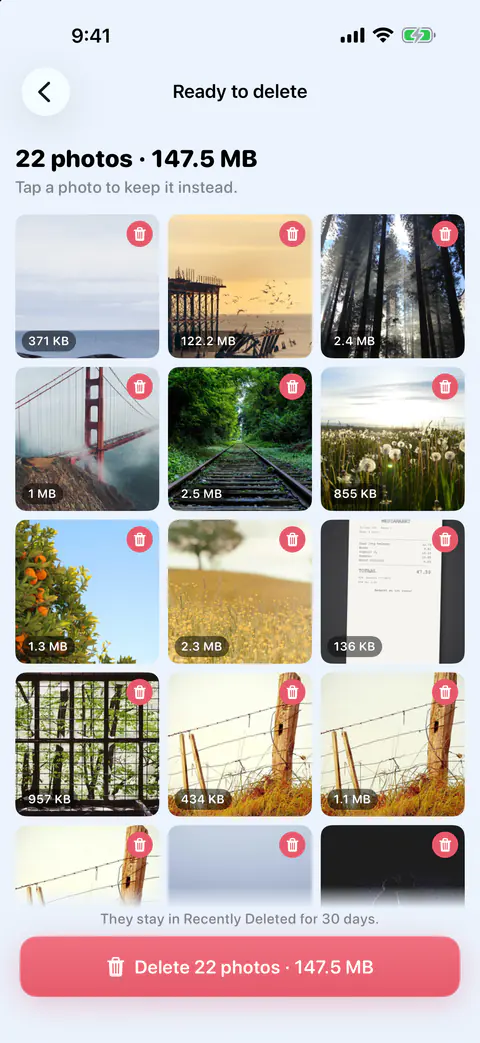
It helps you go photo by photo without a confirmation each time. Swipe right to keep a photo and left to mark it, or use the Keep and Delete buttons. Marked photos wait until you check them and tap Delete. Ready to delete shows every marked photo in one grid with the count and total size. Tap a photo to keep it instead, and one button deletes the rest.
It helps when a swipe goes the wrong way. The Undo button in swipe review takes back your last decision. With a keyboard, Command-Z does the same.
It helps on iPad with a keyboard. With a hardware keyboard, the arrow keys work in swipe review: left marks to delete, right keeps, down saves to Decide later and up opens Album. Command-Z undoes and Escape goes back. In Ready to delete, Command-Delete presses the Delete button, through the same iOS confirmation.
It doesn’t skip the iOS confirmation or the bin. Ready to delete adds no confirmation of its own: iOS asks you to confirm, and if you cancel, nothing is deleted and the photos stay marked. Photos deleted in Keepable go to Recently Deleted in the Photos app. iOS gives apps no way to delete them for good straight away.
Questions and answers
Is there a swipe-to-delete in the Photos app?
Apple’s pages describe swiping left or right to move between photos in full screen, and the Trash button to delete the one on screen. They don’t describe a swipe that deletes. For a keep-or-delete swipe, you need a separate app.
Can I delete without confirming each photo?
Not one by one. Each single delete asks you to tap Delete Photo. Select many first and you confirm once for the whole batch, which is the main reason batching is faster.
Does a faster delete free space faster?
Only once you empty Recently Deleted. Deleted photos wait there for 30 days. Empty it at the end of a session to get the space back.
Sources
What this page says about Keepable was checked against the app on .
- Apple Support, Delete photos on your iPhone or iPad — deleting one photo with the Trash button and Delete Photo, and sliding a finger to select several; published 31 March 2026, read 13 Nov 2026
- Apple Support, Browse your photo library on iPhone — pinching to zoom and the Zoom Out option to see more thumbnails at once (iPhone User Guide for iOS 27), read 13 Nov 2026
- Apple Support, Find photos and videos by date on iPhone — Recent Days and Show All (iPhone User Guide for iOS 27), read 13 Nov 2026
- Apple Support, Capture action shots with Burst mode on your iPhone camera — deleting an entire burst at once (iPhone User Guide for iOS 27), read 13 Nov 2026
- Apple Support, Delete or hide photos and videos on iPhone — deleting from a collection, and turning off the Face ID lock on Recently Deleted (iPhone User Guide for iOS 27), read 13 Nov 2026
- Apple Support, View photos and videos on iPhone — swiping left or right to move between photos in full screen (iPhone User Guide for iOS 27), read 13 Nov 2026
Get Keepable
Keepable is free to use every day, and Keepable Pro is an optional upgrade.