
Two checks before you start
These take five minutes and can save you a wasted evening.
First, see what is actually full. To check iPhone storage, go to Settings, General, iPhone Storage, where the available storage is shown at the top of the screen. Look at how big Photos is next to Messages and your apps. If Photos is small, a camera roll clean-up won’t fix much, and why your storage is full is the better read.
Second, make sure there is a copy. Before deleting, Apple advises backing up the photos and videos you still want. And keep in mind that a delete travels: With iCloud Photos turned on, deleting a photo or video on one device deletes it on all other devices signed in with the same Apple Account. If you are not sure your photos are backed up, do the backup check first.
The plan at a glance
Each session has one target and a clear point to stop. Nothing on the list asks you to judge every photo.
| When | What you clear | Where it is in Photos | Stop when |
|---|---|---|---|
| Evening one | Long videos you don’t need | Library, the Media Types filter, Videos | You’ve looked at the longest clips |
| Evening two | Exact duplicates | Collections, Utilities, Duplicates | Every set is merged |
| Evening three | Screenshots you’re done with | Collections, Media Types, Screenshots | The oldest year is clear |
| Then, twice a week | The long tail, one month at a time | Search for a month | Ten minutes pass |
The same plan works at the start of a school year: see back to school.
Evening one: videos
Videos come first because each one can be large. Apple gives approximate sizes for a one-minute video at iMovie export resolutions: 70 to 105 MB at 1080p, the default iPhone camera setting, 19 to 27 MB at 720, 12 to 16 MB at 540 and 6 to 9 MB at 360. A handful of long clips you no longer need can free more room than an evening of judging single photos.
- Open Photos and go to your library.
- Tap the sort and filter button and use the Media Types filter to show only videos (Apple Support).
- Open a video and tap the Information button to see its file size (Apple Support).
- Delete the long ones you don’t need: the accidental pocket clip, the video you already sent, the ten-minute stream of a stage you can’t see.
Want to keep a video but not its size? Shrinking it is a separate job, covered in shrinking old videos you want to keep. For more ways to find the heavy ones, see finding large videos.
Evening two: the Duplicates collection
This is the fastest session, because Photos has already done the finding. On iPhone, the Duplicates album is in the Photos app under Collections, in the Utilities section.
- Open each set if you want to look first, or don’t.
- You can merge one set of duplicates with Merge, or tap Select and then Select All to merge every set at once, and confirm with Merge followed by the number of items.
Merging is not the same as deleting by hand. When you merge duplicate photos, iPhone combines the highest image quality and relevant data into one photo kept in the library, and the other duplicates move to Recently Deleted. If you see no Duplicates collection at all, Photos has found none yet, or it is still looking. Duplicate detection needs the iPhone to be locked and connected to power, and it can finish quickly or take up to a few days depending on the library size and background tasks.
The collection only gathers duplicates, not the five near-identical shots of one sunset. Those are slower to judge, so they belong in the long tail. The full walk-through is in deleting duplicate photos.
Evening three: screenshots
Screenshots are saved automatically to the photo library and are grouped under Collections, Media Types, Screenshots. Start with the oldest. A boarding pass from two trips ago is easy to let go.
- Open the Screenshots collection and scroll to the top, where the oldest are.
- Tap Select, then slide your finger across a whole row or screen to select many at once (Apple Support).
- Before you tap Delete, scan for the few you need: tickets, codes, a record of a payment.
More on this in deleting all screenshots at once.
After each session: empty Recently Deleted
Nothing you deleted is gone yet. Photos and videos you delete in the Photos app go to the Recently Deleted album for 30 days, and after 30 days they are permanently deleted. The space comes back when that album is emptied, so end each evening there: look through it, recover anything you regret, then delete the rest (Apple Support).
One warning. If you are over your iCloud storage limit, photos and videos you delete are removed immediately and cannot be recovered from Recently Deleted. If your iCloud is full, check each delete twice.
The long tail: ten minutes, one month at a time
What is left is ordinary photos: retakes, blurry ones, things you can’t remember shooting. This part never ends in one go, and it doesn’t need to.
Pick one month. In Photos, tap the search button and type the month and year, such as “June 2025” (Apple Support). Tap Select, pick the misses, delete them, and stop after ten minutes. Next time, take the month before.
Two short sessions a week add up, month after month, without one ruined weekend. If your library runs into five figures, the triage plan for 10,000 photos sets a better order.
Once a year, a bigger pass helps: see spring-clean your camera roll.
What to skip for now
- Albums and keywords. Organising comes after clearing, not during.
- Perfect choices. If you can’t decide on a photo in a few seconds, keep it.
- Other people’s photos in shared albums. Those follow their own rules; see how sharing works in Photos.
Where Keepable helps, and where it doesn’t
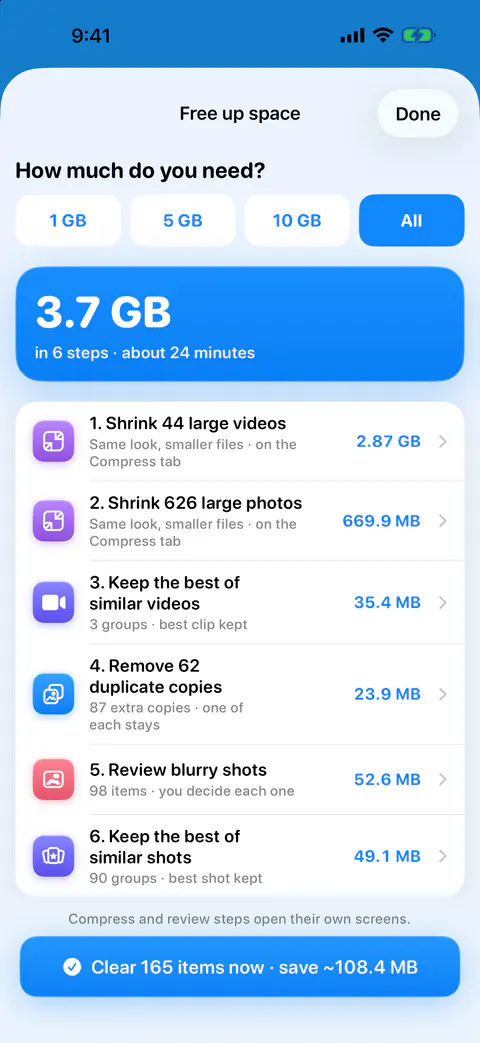
It helps you plan the sessions by space, not by guesswork. Free up space asks how much you need, 1, 5 or 10 GB or all of it, and answers with the shortest list of steps across the Clean piles and Compress, each step opening its screen. Free users can run the free-up plan step by step within their deletes. Running all the ready steps at once, with one confirmation and one iOS prompt, is Pro.
It helps with evening one. Biggest first puts your videos and large photos in one deck, largest first.
It helps with the long tail. A month you have started shows how much is done, how many photos are left and about how long they will take, at roughly 1.5 seconds a photo.
It doesn’t clear apps, messages or system files. Keepable finds the duplicates, blurry shots, screenshots and huge videos in your camera roll and lets you clear them with a swipe. If something other than photos fills your storage, start with why your storage is full.
Questions and answers
Why do videos come before everything else?
Because each one can be big. Apple’s own figure for one minute of video at 1080p, the default camera setting, is 70 to 105 MB. So a few long clips you don’t need can free more room than an hour of judging single photos.
Can I do all three sessions in one night?
You can, if you have the energy. The point of splitting them is that each one has a clear end. If you stop after the first, you have still done the part that frees the most space.
What about similar photos, the five shots of the same thing?
They are a big pile, but slow to judge, because someone has to pick the best one. Leave them for the long-tail sessions, a month at a time. Apple’s Duplicates collection only gathers duplicates, not similar shots.
Sources
What this page says about Keepable was checked against the app on .
- Apple Support, Compress a video on iPhone — the approximate size of a one-minute video at each resolution, and where Photos shows a video’s file size; read 13 Nov 2026
- Apple Support, Sort and filter the photo library on iPhone — the Media Types filter that shows only photos, videos or screenshots (iPhone User Guide for iOS 27), read 13 Nov 2026
- Apple Support, Delete photos on your iPhone or iPad — selecting by sliding a finger, merging duplicates and the 30 days in Recently Deleted; published 31 March 2026, read 13 Nov 2026
- Apple Support, Search for photos and videos on iPhone — searching by month or year (iPhone User Guide for iOS 27), read 13 Nov 2026
Get Keepable
Keepable is free to use every day, and Keepable Pro is an optional upgrade.