
Make the album first, or on the fly
You can create an empty album and fill it later, or make it at the moment you add photos. Both work. Apple’s steps for a new album (Apple Support):
- Open Photos and tap Collections.
- Tap Albums, then tap the Add button.
- Tap New Album, name it, add photos, and choose a key photo.
- Tap Create.
If you plan to fill it from the library, as below, you can skip this and create the album from the Add To menu instead.
For one big event, see graduation season photos.
The fastest way: select many, add once
This is the move to learn. One slide of your finger selects a whole row or screen, and one menu files them all.
- In Photos, open your Library.
- Tap Select, then slide your finger across the photos you want. Sliding selects many at once, so you don’t have to tap each one (Apple Support).
- Tap the More button, tap Add To, then tap Album, Shared Album, or make a new one.
- Tap the album you want (Apple Support).
Work a screen at a time. Slide across the ones that belong, add them, scroll on, repeat. A whole trip can go into its album in a few passes. For the whole library, see how to select all photos on iPhone.
Let search gather the set for you
Scrolling is slow when the photos you want are spread across years. Search can pull them together first. You can search by month or year, place, business name, category such as beach or sunset, or people and pets you have named (Apple Support).
- Tap the Search button in Photos and type, for example, “beach” or “Lisbon”.
- Tap a suggestion and swipe up to see all the results.
- Tap Select, then pick the photos. Apple’s page names adding to an album as one of the things you can do with selected results.
- Add them with More, Add To, Album.
An album of every photo of the dog, or every birthday cake, takes a search and a few slides. Using search in Photos has more search ideas.
Add from inside the album
When you’re already looking at the album, add to it from there. Open the album, tap the More button, then Add Photos, and pick from the grid. Tap All to see your whole library rather than suggestions (Apple Support).
To take a photo back out, touch and hold it in the album, then tap Remove from Album. That only takes it out of the album.
Keep many albums tidy with folders
Once you have more than a screenful of albums, group them. Tap Add in Albums, then New Folder, name it, tap Add Albums and choose which ones go in (Apple Support). One folder per year, or per child, keeps the list short.
What an album is, and what it isn’t
An album is a view, not a copy. That has three effects worth knowing:
- No extra space. A photo in five albums is still one photo.
- Deleting an album is safe. Deleting an album does not delete its photos and videos, which stay in the library and in any other albums they were added to.
- Deleting a photo is not. Deleting a photo from Photos deletes it everywhere, including from any album it was organized into.
If you use iCloud Photos, your albums are stored in iCloud and stay up to date on your other devices signed in to the same Apple Account (Apple Support).
Before you build many albums, check whether you need them. Photos already groups trips, people, pets and screenshots by itself. How to organize photos on iPhone explains which albums are worth making.
Where Keepable helps, and where it doesn’t
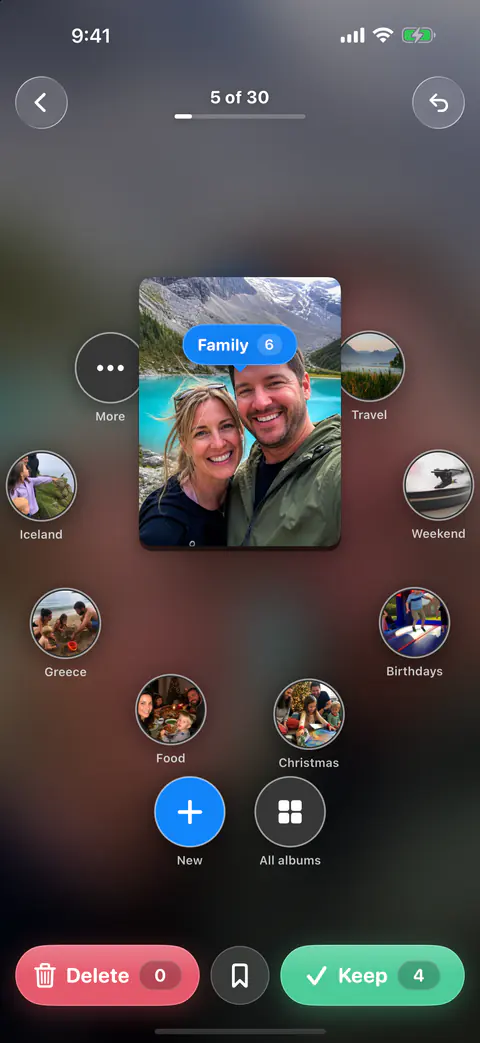
It helps when you’re sorting and clearing in the same pass. Drag a photo up to drop it straight into an album. Dragging a photo up shows your albums as bubbles to drop it into, with New to make an album on the spot and All albums for the full list.
It helps if you sort with a keyboard on iPad. With a hardware keyboard, the arrow keys work in swipe review: left marks to delete, right keeps, down saves to Decide later and up opens Album. Command-Z undoes and Escape goes back.
It doesn’t add a whole batch at once: each swipe files one photo. In swipe review you swipe left to delete, right to keep, and up to sort the photo into an album. For a few hundred photos from one trip, the select-and-add steps above are faster.
Questions and answers
Does adding a photo to an album make a copy?
No. The photo stays in your library, and the album shows it. Apple says that when you delete an album, its photos stay in your library and in any other albums. A photo can be in several albums at once.
If I delete a photo from an album, is it gone?
Not if you use Remove from Album, which only takes it out of that album. Deleting the photo itself from Photos removes it everywhere, including every album it was in.
Can I add photos to an album from the Camera?
Apple’s album steps start from Photos, not the Camera. The quickest way is to take the photos first, then select them in Recent Days or the library and add them in one go.
Sources
What this page says about Keepable was checked against the app on .
- Apple Support, Create and work with photo albums on iPhone — creating an album, folders, and albums in iCloud Photos (iPhone User Guide for iOS 27), read 13 Nov 2026
- Apple Support, Add, delete, and find photos and videos in albums on iPhone — adding photos from the library or from inside an album, removing them, searching in an album (iPhone User Guide for iOS 27), read 13 Nov 2026
- Apple Support, Search for photos and videos on iPhone — selecting search results to add to an album (iPhone User Guide for iOS 27), read 13 Nov 2026
- Apple Support, Delete photos on your iPhone or iPad — selecting several photos by sliding a finger across them; published 31 March 2026, read 13 Nov 2026
Get Keepable
Keepable is free to use every day, and Keepable Pro is an optional upgrade.