
Why a few videos are the big win
Video is heavy. Apple puts one minute of video at the camera’s default 1080p at about 70 to 105 MB (Apple Support). By that figure, a ten-minute school play holds 0.7 to 1 GB on its own. Apple says faster frame rates and higher resolutions result in larger video files; the formats and frame rates are chosen in Settings, Camera, Record Video. So a 4K clip of the same length is bigger still, though Apple publishes no 4K figure.
That makes the job small. You are not combing through thousands of photos. You are finding a dozen long videos and dealing with each one well.
Find the longest videos
Apple’s guide gives two sorts for the library, by date added or by date taken, and a filter by media type (iPhone User Guide). There is no sort by size, so work like this:
- In Photos, tap the Sort and Filter button, then use the Media Types filter to show only videos.
- Scroll back through the older years first.
- Open any video that runs long and tap the Information button. The file size shows under the name of the recording device (Apple Support).
- Note the biggest ten. Those are your list.
The full search, with other ways to spot large files, is on find large videos on iPhone.
Decide what each one deserves
Not every big video should be shrunk.
| The video | Do this |
|---|---|
| You never want to see it again | Delete it |
| You want it, and only watch it on a phone | Make a smaller copy, check it, delete the original |
| You may edit it, or show it on a TV | Keep the original off the phone, on a drive or computer |
| You are not sure | Keep it for now and come back to it |
Compression is lossy. Apple warns that a lower-resolution export may reduce video quality (Apple Support). For a wedding or a first birthday, a full-quality copy somewhere safe is worth the trouble.
Keep a safe copy first
Apple’s advice before any delete is to back up the photos and videos you still want (Apple Support). For big videos, an external drive is the simplest place (iPhone User Guide):
- Connect the drive or memory card to your iPhone’s port.
- In Photos, select the videos, tap the Share button, then tap Export Unmodified Original.
- Tap your drive under Locations, then tap Save.
Apple’s ProRes page describes the same move for large files: export them to an external drive, then delete them from Photos and then from Recently Deleted (Apple Support).
If you use iCloud Photos, know one more thing. With Optimize iPhone Storage on, Apple says full-resolution originals sit in iCloud and the iPhone keeps “storage-saving versions” (iPhone User Guide). A video that is only in iCloud has to download before anything can shrink it.
Shrink, check, then let the original go
- Make the smaller copy. Apple’s own way is an iMovie export at 720, 540 or 360. The steps are on how to compress a video on iPhone.
- Watch it. Play it to the end on the screen you will use. Listen too.
- Compare the details. Check the date and place in the Info panel of both. Fix the copy with Adjust Info if they differ.
- Delete the original. With iCloud Photos on, it goes from every device signed in to your Apple Account (Apple Support).
- Empty Recently Deleted when you are sure. Deleted items wait there for 30 days. Deleting them from that album is final.
Do it in small batches: three or four videos, checked, then the next few. A mistake on one video is easy to fix inside the 30 days; a mistake on fifty is not. How to empty the album is on Recently Deleted. To stop the problem coming back, read how much space 4K video takes.
Where Keepable helps, and where it doesn’t
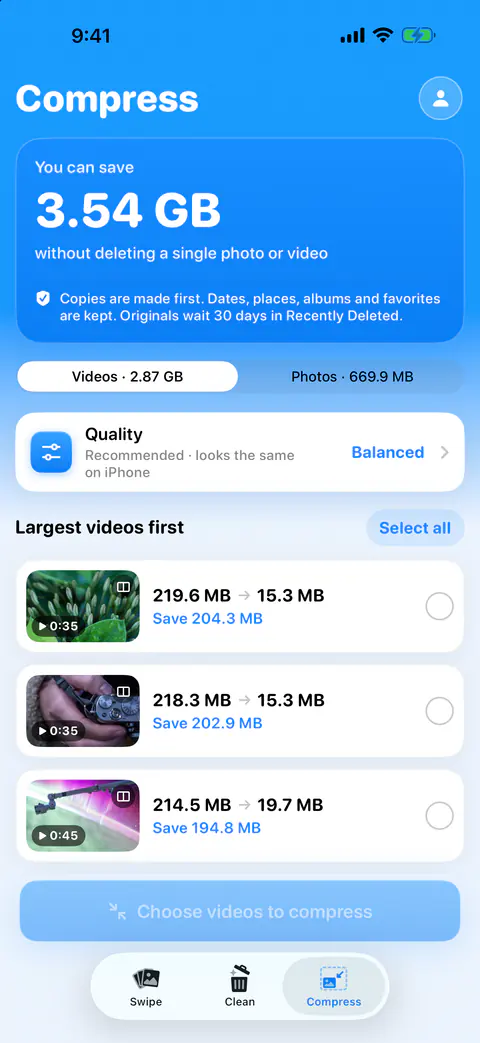
It helps you find the list. The Compress tab lists photos over 1 MB and videos over 20 MB. Large and old lists photos over 8 MB and videos over 100 MB taken more than 18 months ago. Favorites and photos you kept stay out.
It helps you shrink a batch in place. For videos, Best quality exports at up to 1080p in HEVC, Balanced at 720p and Smallest at 480p. A video already inside a choice’s size is left as it is. One compression run takes up to 500 items. With more selected, Keepable offers to keep the largest 500. Copies are made first. Dates, places, albums and favorites are kept. Originals wait 30 days in Recently Deleted.
It helps you check before the swap. After a run, a results sheet shows each item before and after, and why any were skipped. Nothing is replaced until you confirm, and then iOS asks you to confirm too. You can also throw the copies away and keep every original.
It doesn’t download videos from iCloud. Items stored only in iCloud aren’t counted or compressed. Download them in Photos to compress them. It also needs to stay open while it works. Compression runs while Keepable is open. If iOS suspends the app, the run stops and the Lock Screen shows Paused with tap to resume.
It doesn’t back up your originals. Use a drive or a computer for that, as above (iPhone User Guide).
Questions and answers
Can Photos sort my videos by size?
Apple’s guide offers sorting by the date items were added or taken, and a Media Types filter to show only videos. It describes no sort by size, so open a long video and check its size in the Info panel.
Will shrinking a video free iCloud space too?
With iCloud Photos on, Apple says a video you save appears on your other devices, and a video you delete is deleted on all of them. Apple also says items in Recently Deleted don’t count towards your iCloud storage.
Should I shrink or delete?
Delete what you would never watch again. Shrink what you want to keep but only watch on a phone. Keep the full original of anything you may edit or show on a big screen, ideally on a drive or computer.
Sources
What this page says about Keepable was checked against the app on .
- Apple Support, Compress a video on iPhone — one minute at 1080p is about 70 to 105 MB, the iMovie export, and where Photos shows a video’s size; published 29 Jul 2026, read 13 Nov 2026
- iPhone User Guide, Sort and filter the photo library on iPhone — the Media Types filter and sorting by date added or taken; iOS 27 guide, read 13 Nov 2026
- iPhone User Guide, Import and export photos and videos on iPhone — Export Unmodified Original to an external drive; iOS 27 guide, read 13 Nov 2026
- Apple Support, About Apple ProRes on iPhone — export large videos to external storage, then delete them and empty Recently Deleted; published 10 Nov 2026, read 13 Nov 2026
- Apple Support, Delete photos on your iPhone or iPad — back up first, deletes reach every device with iCloud Photos, Recently Deleted keeps items 30 days, and deleting from it is final; published 31 Mar 2026, read 13 Nov 2026
- iPhone User Guide, Back up and sync your photos and videos with iCloud — Optimize iPhone Storage keeps storage-saving versions on the iPhone; iOS 27 guide, read 13 Nov 2026
- Apple Support, Manage your iCloud storage on your Apple device — items in Recently Deleted don’t count towards iCloud storage; published 14 Sep 2026, read 13 Nov 2026
Get Keepable
Keepable is free to use every day, and Keepable Pro is an optional upgrade.