
Show only your videos
Photos has no sort by size, so you narrow the field instead. Apple’s Library filter can show only photos, videos or screenshots (Apple).
- Open Photos and go to the Library.
- Tap the sort and filter button, then choose the Media Types filter and pick videos.
- Tap Remove Filters when you are done, to see everything again.
Now scroll. You are looking for length more than anything. At the same settings, a ten-minute clip takes about ten times the room of a one-minute clip.
Check the exact size
Length is a guess. The Information panel gives the real number. Open a video, then tap the Information button at the bottom. Apple says the file size appears under the name of the device that recorded it (Apple Support).
Apple’s own reference points help you judge what you see:
| Resolution | About one minute of video |
|---|---|
| 1080p, the default camera setting | 70 to 105 MB |
| 720 | 19 to 27 MB |
| 540 | 12 to 16 MB |
| 360 | 6 to 9 MB |
For other lengths and settings, the video size calculator does the sums.
These are Apple’s figures for its iMovie export sizes (Apple Support). Apple publishes none for 4K.
The settings that make clips heavy
Two videos of the same length can be very different sizes. Apple says faster frame rates and higher resolutions result in larger video files; the formats and frame rates are chosen in Settings, Camera, Record Video. So check these first:
- 4K and 60 fps. Higher resolution and faster frame rate, larger files (Apple).
- Slow motion. Slo-mo records at 1080 HD at 240 fps from the back camera and 1080 HD at 120 fps from the front camera by default; supported models also offer 4K at 120 fps. More in slow-motion video size.
- Cinematic mode. Cinematic mode records at 1080 HD at 30 fps by default on supported models, and Settings, Camera, Record Cinematic switches it to 4K at 24 or 30 fps. More in Cinematic mode video.
- ProRes, on Pro models. Apple says ProRes files are up to 30 times larger than HEVC files. If you filmed in it once to try it, find that clip.
- Most Compatible. HEIF and HEVC compress better than JPEG and H.264, so they use less storage space on Apple devices and in iCloud Photos while keeping the same visual quality. Choosing Most Compatible in Settings, Camera, Formats records in H.264 instead (Apple Support).
To see what your camera uses now, open Settings, tap Camera, then tap Record Video (Apple). The guides on 4K video sizes and whether to record at 60 fps help you choose.
Decide what happens to each long video
Most big videos fall into one of five piles. Decide per clip, not per library.
| The video is | Do this | What it costs |
|---|---|---|
| Never watched again | Delete it | Nothing, once Recently Deleted is emptied |
| Long, with one good moment | Save that frame as a photo, then delete the video | The rest of the clip |
| Worth keeping, but huge | Make a smaller copy, check it, delete the original | Some quality |
| Precious at full quality | Move the original to a computer | A computer and a cable |
| Precious and already small | Keep it | Nothing |
Save a frame. In iOS 27 you can save any frame from a video as a photo. That is handy for a long clip where you only wanted one moment.
Make a smaller copy. Apple’s way to reduce the size of a recorded video on iPhone is to open it in iMovie and export it at a lower resolution, which may reduce quality. In iMovie you can also trim the clip before you export it. The export is a new video; delete the original only after you have watched the copy (Apple Support). The guide to compressing a video compares the options.
Move it off. Connect the iPhone to a Mac with a USB cable, open Photos, then click Import Selected (Apple Support). With iCloud Photos on, deleting from the phone deletes it everywhere, so read shrinking old videos you want to keep first.
Stop the next big video
For smaller files from now on, Apple suggests a resolution lower than 1080p, HDR Video off, and High Efficiency selected (Apple Support). Only change what you won’t miss. If you film your kids’ first steps, 4K may be worth every megabyte.
Where Keepable helps, and where it doesn’t
It helps you find big, old videos without opening each one. Large and old lists photos over 8 MB and videos over 100 MB taken more than 18 months ago. Favorites and photos you kept stay out.
It helps you keep a video in a smaller form. For videos, Best quality exports at up to 1080p in HEVC, Balanced at 720p and Smallest at 480p. A video already inside a choice’s size is left as it is. After a run, a results sheet shows each item before and after, and why any were skipped. Nothing is replaced until you confirm, and then iOS asks you to confirm too. You can also throw the copies away and keep every original.
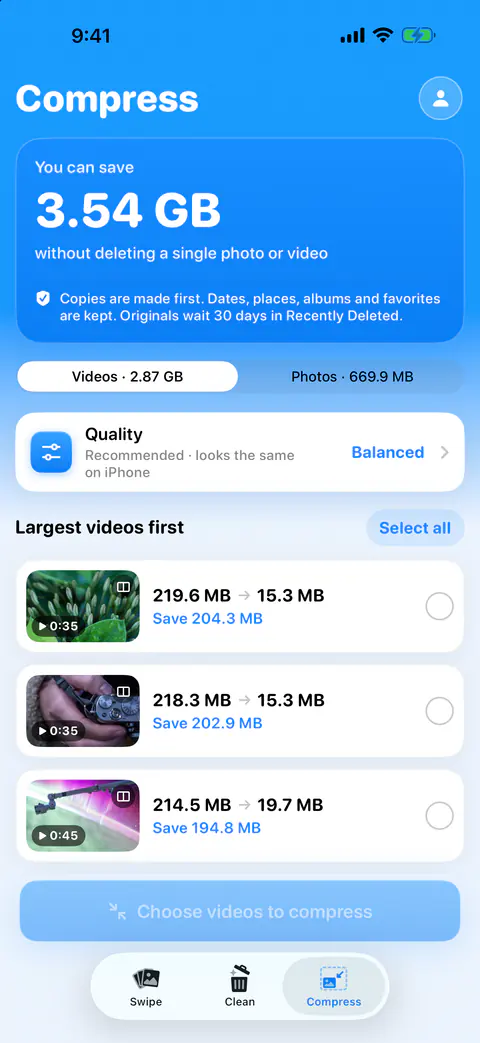
It doesn’t compress videos stored only in iCloud. Items stored only in iCloud aren’t counted or compressed. Download them in Photos to compress them. With Optimize iPhone Storage on, the full-size originals are kept in iCloud (Apple).
It doesn’t keep working in the background. Compression runs while Keepable is open. If iOS suspends the app, the run stops and the Lock Screen shows Paused with tap to resume.
Questions and answers
How big is a one-minute iPhone video?
Apple gives about 70 to 105 MB for one minute at 1080p, the default camera setting. It gives no per-minute figure for 4K, but says faster frame rates and higher resolutions make larger files, so a 4K or 60 fps minute is bigger than that.
Is there a way to sort videos by size in Photos?
No. Apple’s guide lists sorting by date added and date taken only. Filter the Library to videos, check the long ones first, and tap the Information button on each to see its size.
Will a smaller copy look worse?
It can. Apple says exporting at a lower resolution reduces the file size, but video quality might be reduced, depending on how the video was recorded. Watch the copy before you delete the original.
Sources
What this page says about Keepable was checked against the app on .
- Apple Support, Compress a video on iPhone — the Information button shows a video’s size, one-minute sizes at 1080p, 720, 540 and 360, exporting a smaller copy with iMovie, settings for smaller files; published 29 Jul 2026, read 13 Nov 2026
- Apple, iPhone User Guide, Sort and filter the photo library on iPhone — the Media Types filter shows only photos, videos or screenshots, read 13 Nov 2026
- Apple, iPhone User Guide, Record a video with your iPhone camera — higher resolutions and frame rates make larger files; Settings, Camera, Record Video, read 13 Nov 2026
- Apple, iPhone User Guide, Change video recording settings on iPhone — default Slo-mo and Cinematic settings, HDR video, read 13 Nov 2026
- Apple Support, About Apple ProRes on iPhone — ProRes files are up to 30 times larger than HEVC; published 10 Nov 2026, read 13 Nov 2026
- Apple Support, Using HEIF or HEVC media on Apple devices — HEVC uses less space than H.264; High Efficiency and Most Compatible; published 5 Dec 2025, read 13 Nov 2026
- Apple, iPhone User Guide, What’s new in iOS 27 — saving any frame of a video as a photo, read 13 Nov 2026
- Apple, iPhone User Guide, Back up and sync your photos and videos with iCloud — Optimize iPhone Storage keeps originals in iCloud, read 13 Nov 2026
- Apple Support, Transfer photos and videos from your iPhone or iPad to your Mac or PC — importing to a Mac with a USB cable; published 14 Sep 2026, read 13 Nov 2026
Get Keepable
Keepable is free to use every day, and Keepable Pro is an optional upgrade.